How to Set Custom Instructions for Each AI Project You Create
Master the art of project-level AI prompting. Learn how to configure persistent tone guidelines, persona rules, formatting standards, and negative constraints in TaggoAI Workspace.
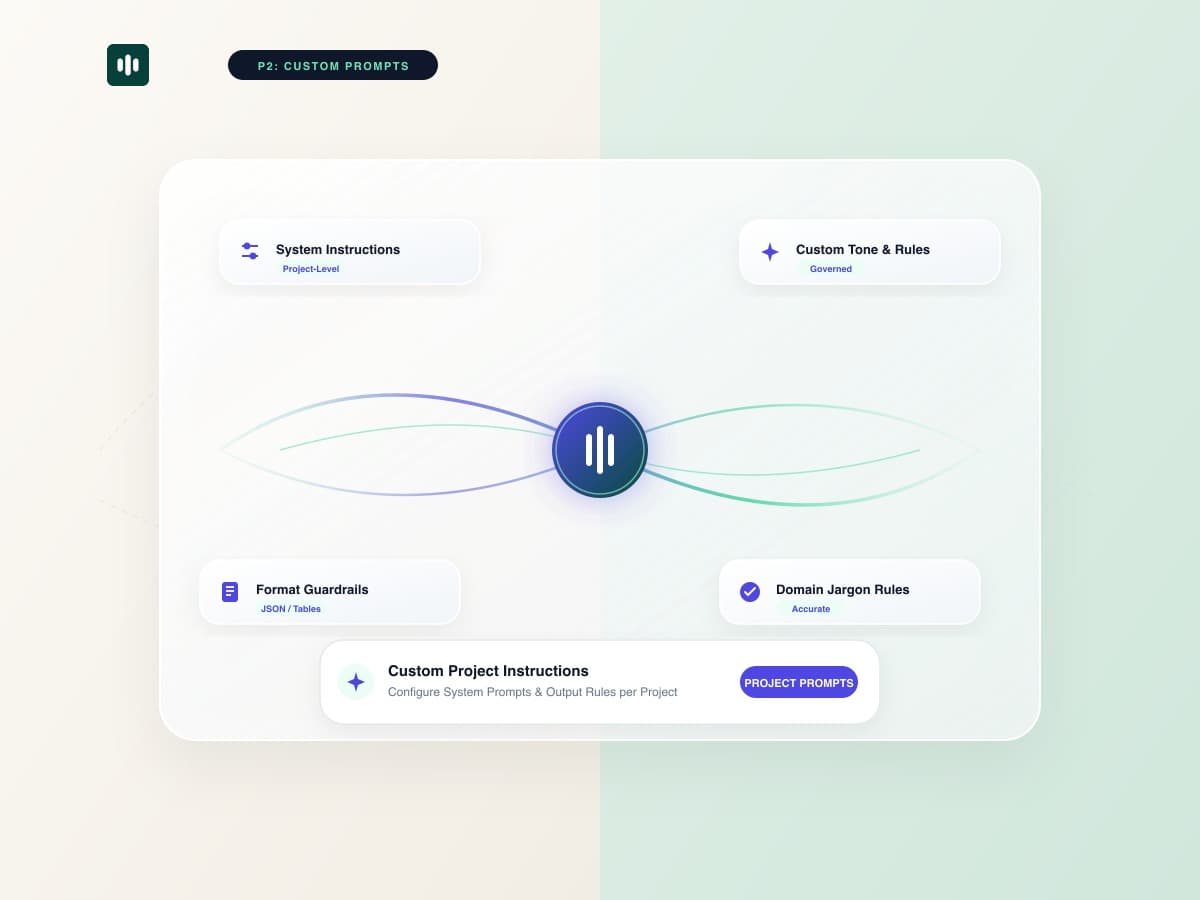
Prompt engineering is often treated as a repetitive manual chore: re-typing "Write in an authoritative tone...", "Do not use buzzwords like 'synergy'...", or "Format all outputs in clean tables..." in every single chat thread. When managing diverse deliverables—such as investor pitches, compliance memos, and technical documentation—generic AI prompts produce lackluster results. With TaggoAI AI Workspace, you can configure Persistent Custom Instructions once per project, guaranteeing every output automatically conforms to exact standards.
Project instructions act as permanent guardrails. Every team member who asks a question inside that workspace inherits the exact same persona, vocabulary rules, and output formatting automatically—no prompt coaching required.
1. The 4 Essential Pillars of Project Custom Instructions
A high-impact instruction set should contain four structured blocks:
📐 The 4-Part Instruction Architecture:
1. Role & Perspective: Define who the AI is (e.g. "You are a Senior SaaS Financial Analyst with 15 years experience in B2B valuation.").
2. Target Audience Context: Specify who reads the output (e.g. "Deliver responses tailored for C-suite executives who value concise, data-driven decisions.").
3. Structural Formatting Rules: Dictate presentation schemas (e.g. "Always provide an Executive Summary, a 3-column metric table, and 3 actionable next steps.").
4. Negative Constraints & Banned Terms: Eliminate fluff (e.g. "Never use clichés like 'game-changer', 'delve into', or ungrounded speculative projections.").
2. Real-World Blueprint: Legal vs Marketing Project Instructions
| Configuration Aspect | Legal Audit Workspace | B2B Marketing Workspace |
|---|---|---|
| System Persona | Senior Commercial Contract Auditor | Direct-Response SaaS Copywriter |
| Tone & Style | Objective, cautious, citation-grounded | Punchy, engaging, benefit-driven |
| Default Output Format | Clause-by-clause risk severity rating | Hook, Body, Social Proof, CTA block |
| Negative Rules | No assumptions without page citations | No passive voice or corporate jargon |
3. Step-by-Step Setup Guide in TaggoAI
- Navigate to your project in TaggoAI Workspace.
- Click Project Settings → Custom Instructions in the sidebar.
- Paste your structured prompt guidelines into the instruction field.
- Run test queries to verify tone adherence, then save. All project collaborators immediately inherit these rules.
Automate Brand Consistency Across Projects
Set custom instructions for every client and ensure flawless, on-brand AI output every time.
Configure AI Instructions →Frequently Asked Questions
How do project instructions differ from global user instructions?
Global user instructions apply everywhere across your account, whereas Project Custom Instructions only trigger within that specific project workspace, allowing you to tailor behaviors per client or task.
Do custom instructions count against the AI token context limit?
TaggoAI embeds system instructions efficiently as system-level metadata, leaving maximum token capacity for large uploaded documents and extended chat sessions.
Ready to elevate your customer experience?
Deploy intelligent AI agents for your business in minutes.