How to Add WhatsApp Chat to Your Shopify Store (Step-by-Step)
A comprehensive, step-by-step guide on how to add WhatsApp chat to your Shopify store in 2026. Explore free manual button methods, floating widget snippets, and how to automate 24/7 sales and customer support with Taggo AI.
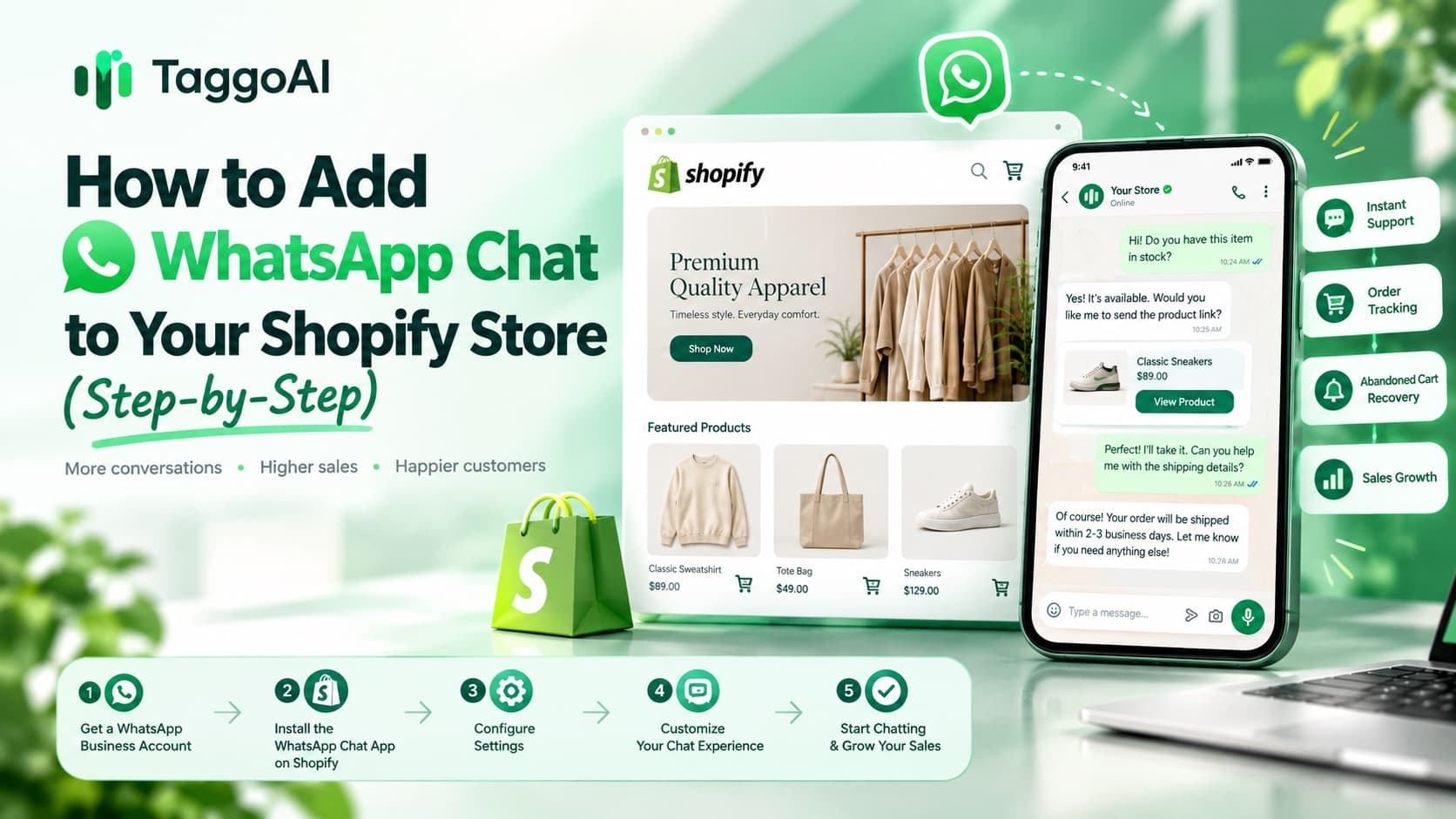
In 2026, conversational commerce is no longer just a luxury for enterprise brands—it is the fastest-growing revenue and support channel for Shopify merchants worldwide. With more than 2.7 billion active users and staggering 98% open rates, WhatsApp has established itself as the undisputed king of direct consumer messaging.
When prospective buyers land on your Shopify store, they frequently have quick questions before clicking “Add to Cart”: “Is this true to size?” “When will this arrive if I order today?” “Do you offer free returns?”
If they cannot get an immediate answer, they leave—and most never come back. Adding a WhatsApp chat widget directly to your Shopify store bridges this gap instantly, giving your customers direct access to help and turning casual window shoppers into loyal paying customers.
In this step-by-step tutorial, you will learn the three proven methods to add WhatsApp chat to Shopify—from free manual links to floating theme widgets, and how to scale your sales around the clock using Taggo AI.
Why Add WhatsApp Chat to Your Shopify Store?
Before diving into the technical setup, let’s look at why thousands of Shopify merchants are prioritizing WhatsApp chat over traditional email tickets or slow live chat tools:
- Instant Conversion Boost (20% – 35% higher sales): Addressing buyer hesitation in real time at the product or checkout page drastically reduces drop-offs.
- High Customer Preference: Customers prefer chatting on an app they already use dozens of times a day rather than waiting for an email reply or filling out a contact form.
- Persistent Conversation Thread: Unlike traditional website live chat widgets that disappear when the user closes their browser tab, WhatsApp conversations stay inside the customer’s phone forever. You can follow up with shipping updates, special offers, and restock alerts.
- Effortless Abandoned Cart Recovery: WhatsApp checkout reminders achieve open rates up to 5x higher than traditional recovery emails.
Method 1: Add a Free WhatsApp Click-to-Chat Link (No Apps Needed)
If you want a lightweight, completely free solution without installing any external apps or modifying complex code, you can use WhatsApp’s native Click to Chat (wa.me) feature.
Step 1: Create Your WhatsApp URL
WhatsApp provides a standardized URL format that automatically initiates a conversation when clicked:
https://wa.me/<your_phone_number>?text=<urlencoded_message>
Rules for formatting:
- Use the full international format without any plus signs (
+), dashes (-), brackets, or leading zeros. - For example, if your country code is
+1(USA) and your number is(555) 123-4567, your number string is15551234567. - URL-encode your pre-filled message (replace spaces with
%20).
Example Link:
https://wa.me/15551234567?text=Hi%20there!%20I%20have%20a%20question%20about%20a%20product%20on%20your%20store.
Step 2: Add the Link to Your Shopify Navigation or Header
- Log in to your Shopify Admin dashboard.
- Navigate to Online Store > Navigation.
- Select your Main Menu or Footer Menu.
- Click Add menu item.
- Enter the Name (e.g., “Chat on WhatsApp” or “Support via WhatsApp”).
- Paste your
https://wa.me/...link into the Link box. - Click Add and then Save menu.
Pros: Zero cost, zero impact on page load speed, extremely simple.
Cons: Lacks a sticky floating button on product pages; requires 100% manual handling of every incoming message.
Method 2: Add a Floating WhatsApp Widget via Custom Liquid
A persistent, floating WhatsApp button in the bottom-right or bottom-left corner of your storefront yields significantly higher engagement than a plain navigation link.
You can add this floating button directly to your Shopify theme without paying for monthly subscription apps.
Step 1: Open Your Theme Code Editor
- In Shopify Admin, go to Online Store > Themes.
- Next to your active theme (e.g., Dawn, Horizon, Impulse), click the … (three dots) menu and choose Edit code.
- In the left sidebar, find and click on
layout/theme.liquid.
Step 2: Paste the Floating WhatsApp Snippet
Scroll down to the bottom of theme.liquid and find the closing </body> tag. Paste the following snippet immediately above </body>:
<!-- Floating WhatsApp Button by TaggoAI -->
<style>
  .taggo-whatsapp-float {
    position: fixed;
    width: 60px;
    height: 60px;
    bottom: 25px;
    right: 25px;
    background-color: #25d366;
    color: #fff;
    border-radius: 50px;
    text-align: center;
    font-size: 30px;
    box-shadow: 0 4px 14px rgba(0,0,0,0.25);
    z-index: 99999;
    display: flex;
    align-items: center;
    justify-content: center;
    text-decoration: none;
    transition: transform 0.3s ease, box-shadow 0.3s ease;
  }
  .taggo-whatsapp-float:hover {
    transform: scale(1.08);
    box-shadow: 0 6px 20px rgba(37,211,102,0.45);
    color: #fff;
  }
  .taggo-whatsapp-float svg {
    width: 34px;
    height: 34px;
    fill: #ffffff;
  }
  @media (max-width: 768px) {
    .taggo-whatsapp-float {
      width: 52px;
      height: 52px;
      bottom: 20px;
      right: 20px;
    }
    .taggo-whatsapp-float svg {
      width: 28px;
      height: 28px;
    }
  }
</style>

<a
  href="https://wa.me/YOUR_PHONE_NUMBER?text=Hi!%20I%20need%20help%20with%20my%20order%20on%20{{ shop.name | url_encode }}"
  class="taggo-whatsapp-float"
  target="_blank"
  rel="noopener noreferrer"
  aria-label="Chat with us on WhatsApp"
>
  <svg viewBox="0 0 32 32" xmlns="http://www.w3.org/2000/svg">
    <path d="M16 2a13.9 13.9 0 0 0-12 20.9L2 30l7.3-1.9A13.9 13.9 0 1 0 16 2zm0 25.5a11.5 11.5 0 0 1-5.9-1.6l-.4-.3-4.4 1.1 1.2-4.2-.3-.4A11.6 11.6 0 1 1 16 27.5zm6.4-8.6c-.3-.2-2-.1-2.3-1.1s-.6-.9-.8-.9h-.7a1.4 1.4 0 0 0-1 .5 4.3 4.3 0 0 0-1.3 3.2 7.5 7.5 0 0 0 1.6 4 17.2 17.2 0 0 0 6.6 5.8 22.3 22.3 0 0 0 2.2.8 5.3 5.3 0 0 0 2.4.2 3.9 3.9 0 0 0 2.6-1.8 3.2 3.2 0 0 0 .2-1.8c-.2-.3-.8-.5-1.1-.7z"/>
  </svg>
</a>
Step 3: Replace the Phone Number and Save
Replace YOUR_PHONE_NUMBER with your actual international WhatsApp number (e.g., 15551234567) and click Save. Visit your live store to see your new floating WhatsApp button in action!
Method 3: The Complete AI Automation Way with Taggo AI (Recommended)
While a basic WhatsApp button allows visitors to message you, it creates a massive operational bottleneck: who is going to answer messages at 2 AM, handle hundreds of repetitive FAQs, look up order statuses, and suggest complementary products?
That is where Taggo AI transforms a simple chat button into an autonomous, 24/7 revenue-generating sales and support team.

How Taggo AI Supercharges Your Shopify WhatsApp Channel:
- Instant 24/7 AI Sales Consultation: Taggo AI reads your entire Shopify catalog in real time to recommend products, explain specifications, verify sizes, and check inventory levels.
- Automated Order Lookup: Customers can text “Where is order #1042?” and Taggo AI instantly queries Shopify fulfillment status, tracking numbers, and expected delivery dates.
- Intelligent Abandoned Cart Recovery: Trigger contextual WhatsApp messages with direct checkout links when shoppers abandon items.
- Multi-Channel Unification: Manage WhatsApp, Messenger, Instagram DM, Zalo, and Live Chat from a single, centralized AI inbox.
- Human-in-the-Loop Handoff: Whenever a conversation requires special VIP treatment or human negotiation, Taggo AI seamlessly alerts your support team.
Step-by-Step Setup with Taggo AI:
- Create Your Account: Sign up at app.taggoai.com.
- Connect Your Shopify Store: In the Taggo AI dashboard, go to Channels > Shopify and authorize your store with one click. Taggo AI automatically synchronizes your products, policies, collections, and inventory.
- Link WhatsApp Business API: Connect your official WhatsApp Business number or Meta Cloud API within minutes without complex developer setup.
- Customize Your AI Personality & Rules: Define your brand voice, return policies, shipping thresholds, and upsell rules.
- Activate the Store Widget: Enable the Taggo AI WhatsApp widget or embedded chat on your Shopify theme with zero coding required.
Comparing Your Options: Which Setup is Best for You?
| Feature / Capability Method 1: Manual Link Method 2: Floating Snippet Method 3: Taggo AI Agent | |||
| Setup Time | 2 minutes | 5 minutes | 5 – 10 minutes |
| 24/7 Automated Replies | ❌ No | ❌ No | ✅ Full AI Agent |
| Real-time Shopify Inventory Sync | ❌ No | ❌ No | ✅ Instant Sync |
| Automated Order Tracking Lookup | ❌ No | ❌ No | ✅ Automated |
| Cart Abandonment Recovery | ❌ Manual only | ❌ Manual only | ✅ Automated Campaigns |
| Human Live Agent Handoff | N/A (Manual) | N/A (Manual) | ✅ Smart Routing |
Best Practices to Maximize WhatsApp Chat Conversions
To get the highest return on investment from your WhatsApp chat widget, implement these four proven best practices:
1. Ensure Mobile-Friendly Placement
Over 75% of ecommerce traffic is mobile. Ensure your floating WhatsApp button does not obscure sticky “Add to Cart” bars, currency selectors, or cookie consent banners on mobile screens. A bottom margin of 20px–25px and right offset of 20px is generally ideal.
2. Craft Contextual Pre-Filled Greetings
Instead of a generic “Hello”, set pre-filled messages that provide context. For instance, including the current product name or shop title helps your team (or AI agent) answer questions immediately without asking “Which product are you looking at?”.
3. Set Clear Response Expectations
If you are using manual WhatsApp support, state your operating hours clearly in your greeting. If you are using Taggo AI, highlight that your AI Assistant is available 24/7 for instant answers.
4. Respect Customer Privacy & Opt-in Rules
Ensure that promotional broadcasts comply with Meta’s WhatsApp Business policies. Only send marketing campaigns and cart recovery messages to customers who have explicitly opted in during checkout or sign-up.
Frequently Asked Questions (FAQ)
Can I add WhatsApp chat to Shopify without any coding knowledge?
Yes. You can either use the basic Navigation link method or use an all-in-one AI platform like Taggo AI, which integrates directly with your Shopify store in just a few clicks without editing theme code.
Is adding WhatsApp chat to Shopify free?
Creating a manual wa.me link or embedding custom HTML floating code is 100% free. If you want automated AI replies, real-time product recommendations, and automated order tracking, Taggo AI offers scalable plans tailored for growing ecommerce stores.
Will adding a WhatsApp button slow down my Shopify store?
The manual link and pure CSS/SVG floating snippets have zero external JavaScript dependencies and zero impact on store performance. When using Taggo AI, the lightweight async widget loads after your primary page content, preserving your Google PageSpeed scores.
Can multiple team members manage WhatsApp chats simultaneously?
With a standard WhatsApp mobile app, you are limited in how many devices can be connected. With Taggo AI connected via the official WhatsApp Business API, multiple team members and AI agents can manage conversations simultaneously from a unified multi-agent dashboard.
Conclusion: Turn WhatsApp into Your #1 Sales Channel
Adding WhatsApp chat to your Shopify store is one of the highest-impact improvements you can make in 2026. It eliminates buyer friction, builds immediate trust, and keeps your store connected with shoppers on their favorite app.
Ready to automate your Shopify customer support, boost conversions, and never miss another customer inquiry? Get started with Taggo AI today and launch your 24/7 AI sales assistant in minutes.
Ready to elevate your customer experience?
Deploy intelligent AI agents for your business in minutes.